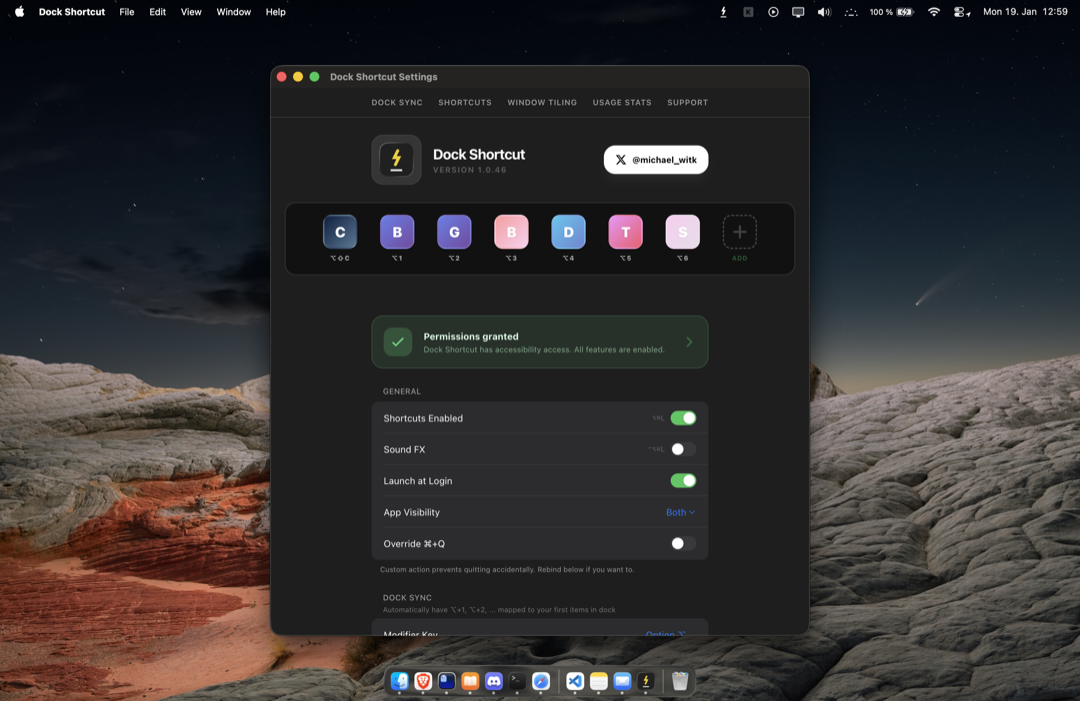
Getting Started
Your complete guide to mastering Dock Shortcut
Install the App
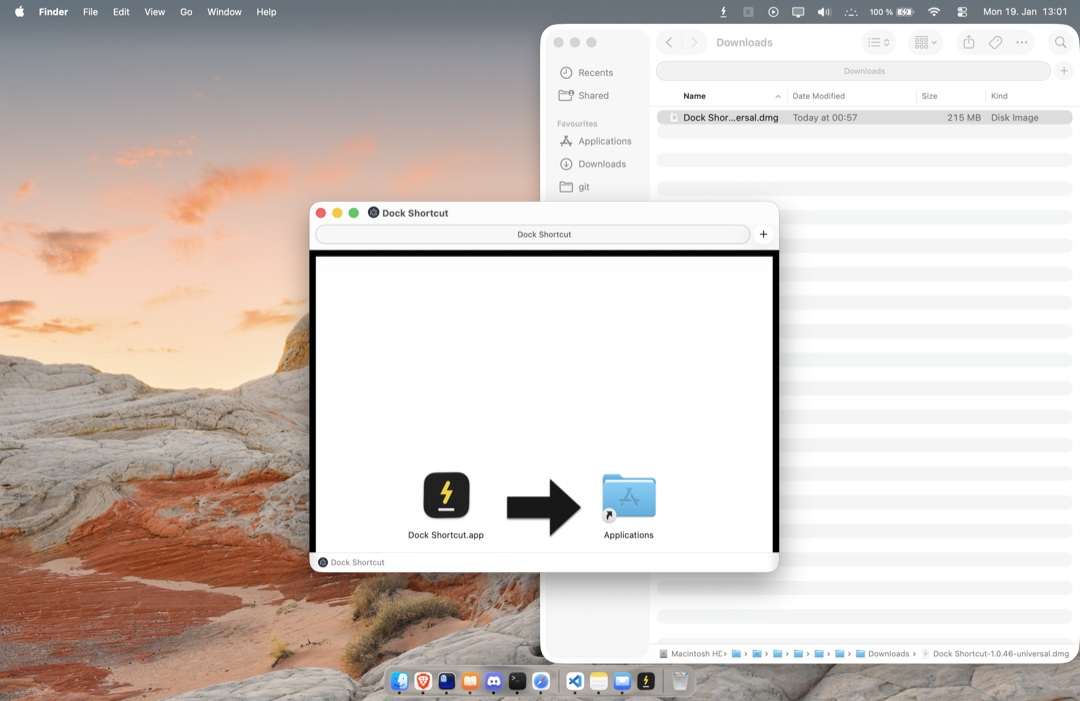
After downloading, open the DMG file and drag Dock Shortcut into your Applications folder. Launch it like any other Mac app.
Activate Your License
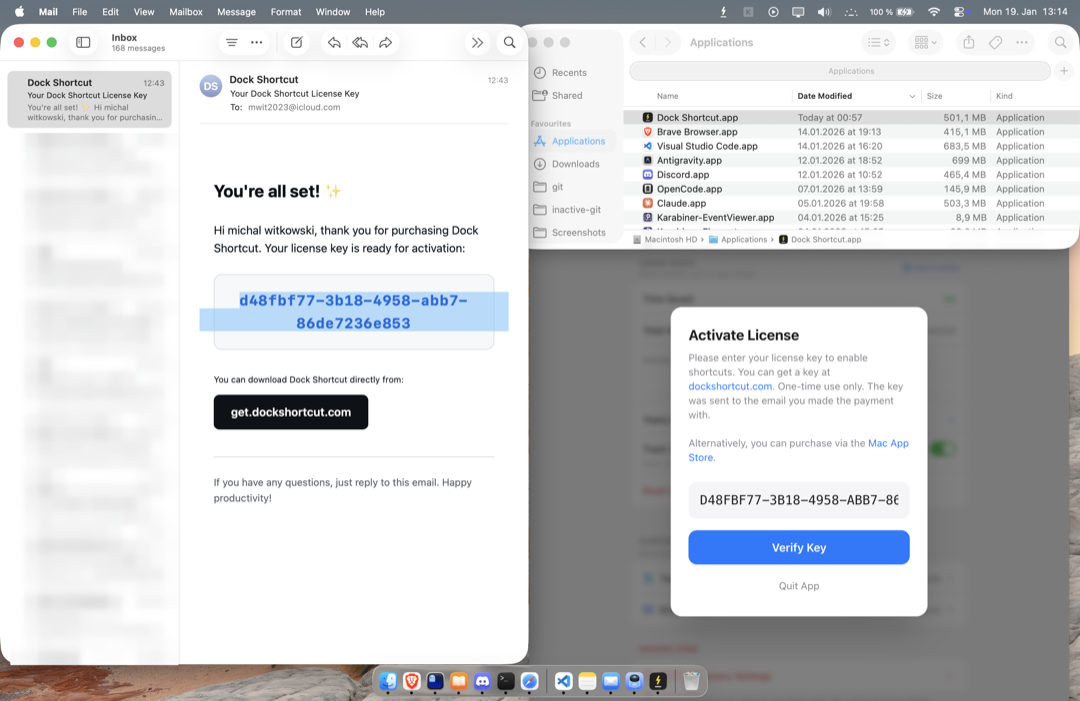
Your unique activation code was sent to the email address used during purchase. Enter it once to unlock the full version.
Dock Shortcuts, no setup.
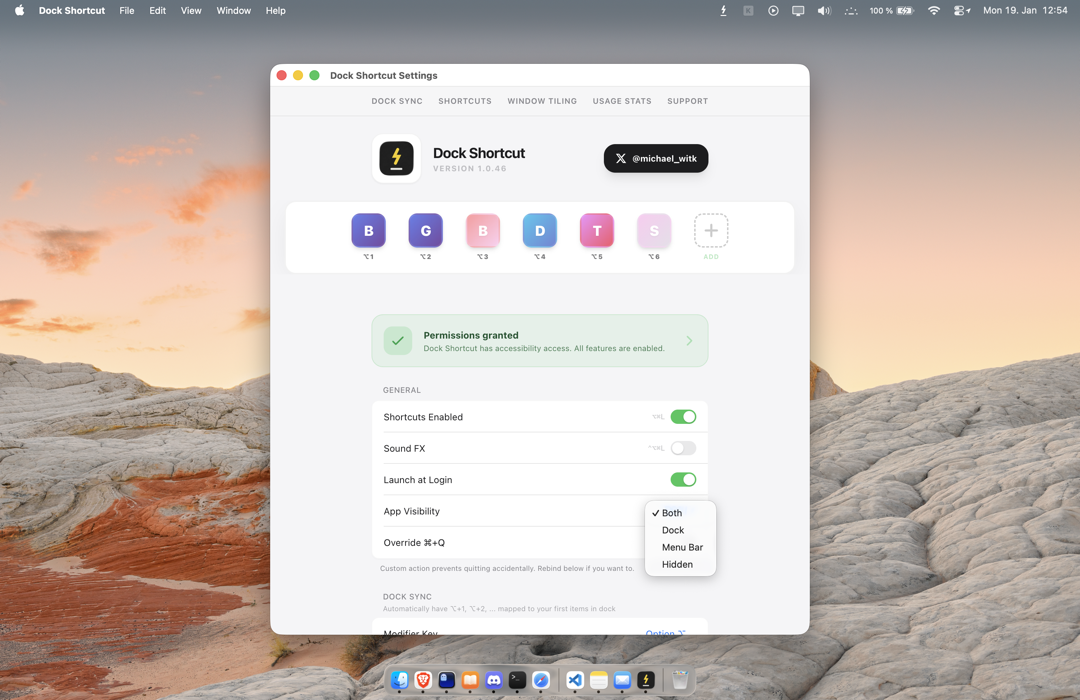
No configuration required. Dock Shortcut reads your dock and assigns shortcuts automatically. Press ⌥ + 1 for the first app, ⌥ + 2 for the second, and so on.
Reorder Dock Apps to have your shortcuts update. That simple.
(optional): For Pro Features to work, you must grant Dock Shortcut permissions in MacOS settings. What is green on this image, will be red on yours until the app restarts. Restart the app to take effect by rightclicking the Dock Shortcut icon and pressing "Quit"
Customize Sync Behavior
Control how your dock synchronizes with Dock Shortcut. Exclude specific apps from receiving shortcuts if needed.
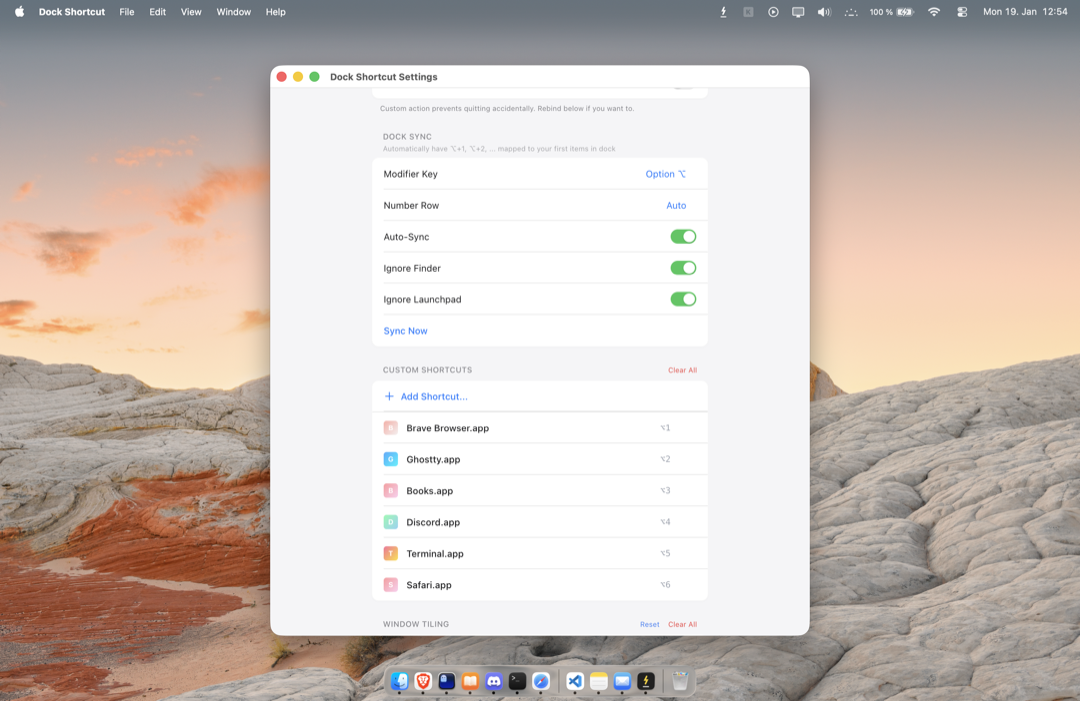
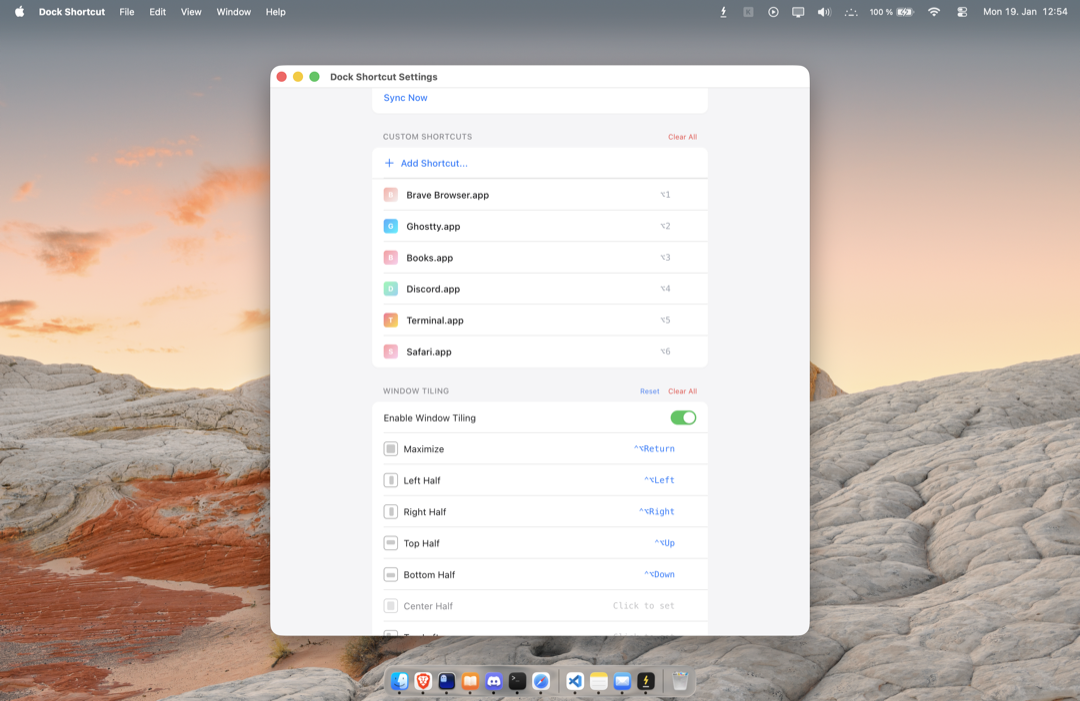
Window Tiling
Organize your workspace with keyboard-driven window management. Fill the screen, snap to halves, or create custom layouts. Power users can also configure graceful quit actions and terminal commands.
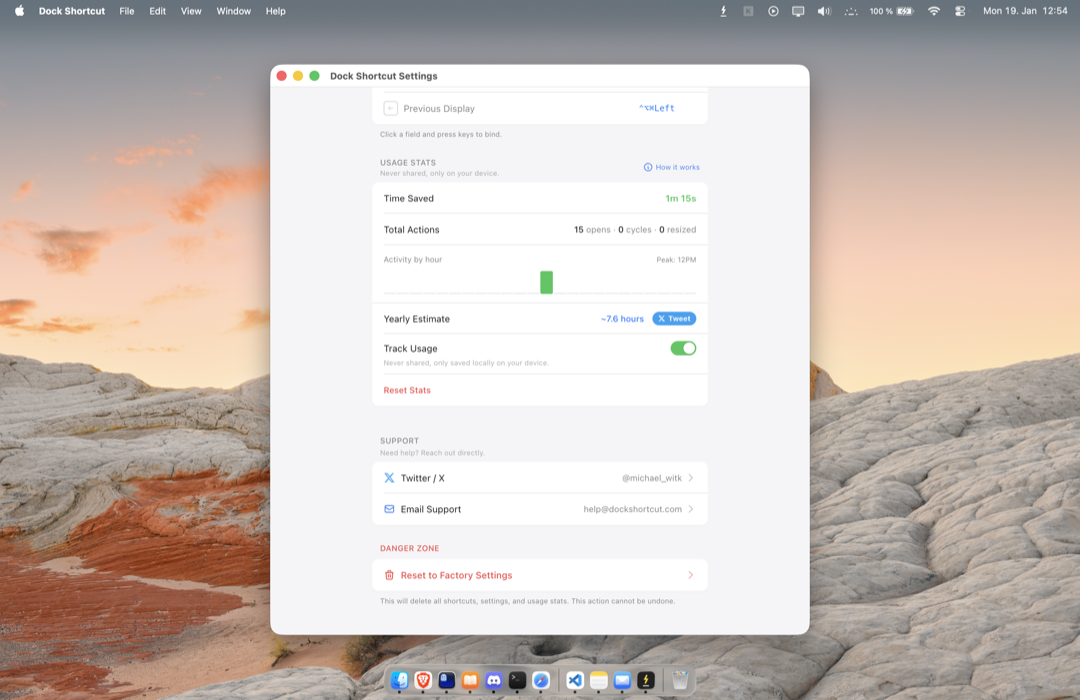
Track Your Productivity
See exactly how much time you've saved. All metrics are stored locally on your device and never transmitted anywhere.
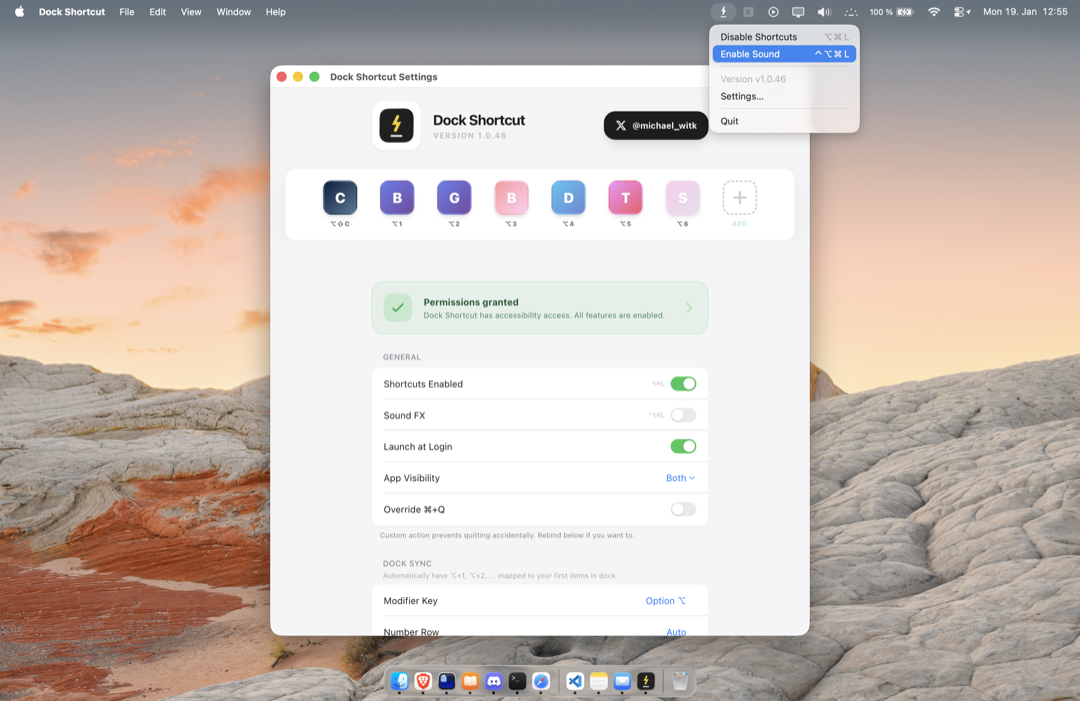
Menubar Mode
Prefer a minimal dock? Hide the app icon and run Dock Shortcut entirely from the menubar.
Easy Shortcut Assignment
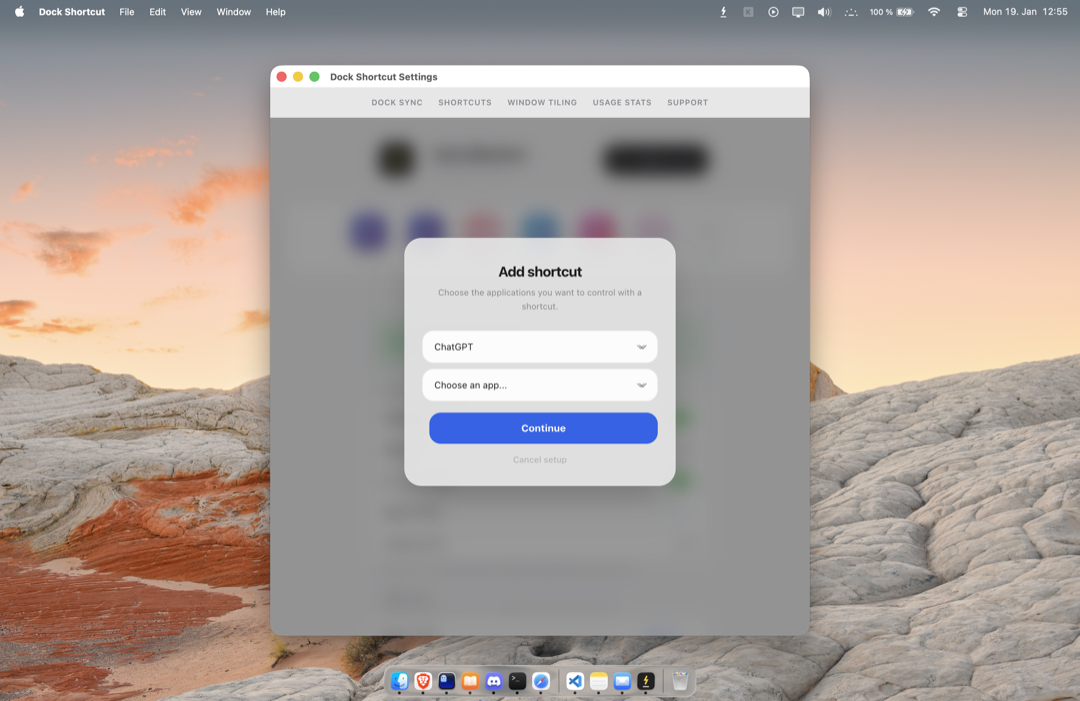
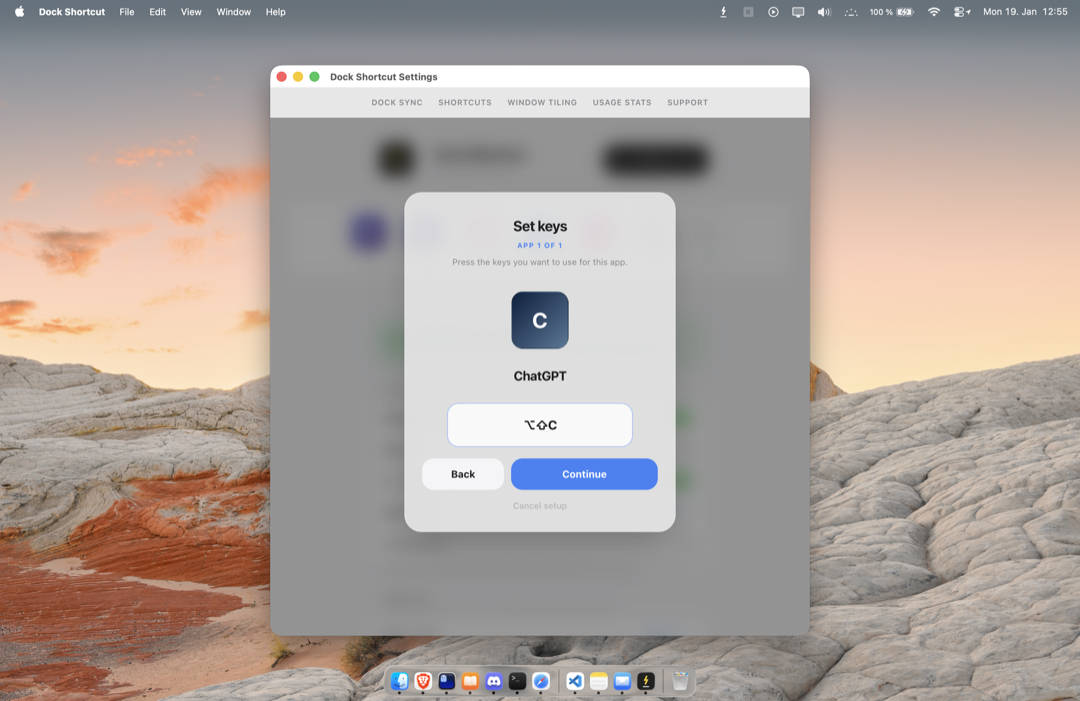
Create custom shortcuts by simply pressing the key combination you want. The keyboard recorder captures your input instantly.
Automatic Dark Mode
The interface adapts to your macOS appearance settings. No manual switching required.